# [Ratdeck](https://ratspeak.org/)
**Standalone Reticulum for the LilyGo T-Deck**
Ratdeck turns a [LilyGo T-Deck](https://www.lilygo.cc/products/t-deck-plus) into a full standalone [Reticulum](https://reticulum.network/) node. It's not just an RNode which requires another device — it's the complete setup.
End-to-end encrypted [LXMF](https://github.com/markqvist/LXMF) messaging over LoRa, TCP over WiFi for bridging to the wider Reticulum network, node discovery, identity management, and more.
---
[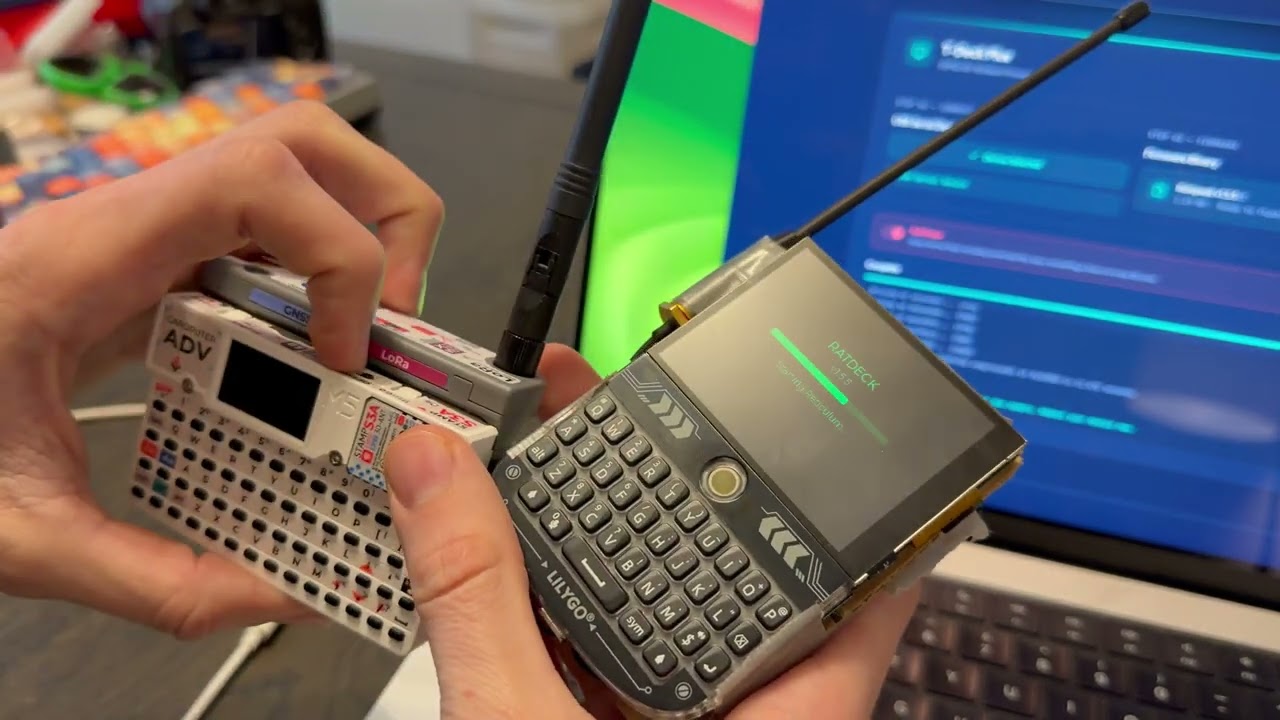](https://www.youtube.com/watch?v=F6I6fkMPxgI)
[▶ YouTube: Reticulum Standalone - T-Deck & Cardputer Adv](https://www.youtube.com/watch?v=F6I6fkMPxgI)
---
## Installing
The easiest way is the **[web flasher](https://ratspeak.org/download.html)** — enable download mode (hold the trackball while powering on), plug in the USB, click flash, done.
To build from source:
```bash
git clone https://github.com/ratspeak/ratdeck
cd ratdeck
pip install platformio
python3 -m platformio run --target upload
```
## Usage
On first boot, Ratdeck generates a Reticulum identity and shows a name input screen. Your LXMF address (32-character hex string) is what you share with contacts.
**Tabs:** Home, Friends, Msgs, Peers, Setup — navigate with the trackball.
**Manually announce:** To send an announcement manually, press the trackball or enter on the home tab.
**Add/delete contacts/messages:** Hold the trackball down on a chat or a peer to add or delete.
**Sending a message:** Find someone in Peers, select to open chat, type your message, hit Enter. Status goes yellow (sending) → green (delivery confirmed).
**Radio presets** (Setup → Radio). Format: name — SF, bandwidth, coding rate, TX power. `Long Fast` is the compiled-in default.
| Preset | SF | BW | CR | TXP | Bitrate | Link budget |
|---|---|---|---|---|---|---|
| Short Turbo | 7 | 500 kHz | 4/5 | 14 dBm | 21.99 kbps | 140 dB |
| Short Fast | 7 | 250 kHz | 4/5 | 14 dBm | 10.84 kbps | 143 dB |
| Short Slow | 8 | 250 kHz | 4/5 | 14 dBm | 6.25 kbps | 145.5 dB |
| Medium Fast | 9 | 250 kHz | 4/5 | 17 dBm | 3.52 kbps | 148 dB |
| Medium Slow | 10 | 250 kHz | 4/5 | 17 dBm | 1.95 kbps | 150.5 dB |
| Long Turbo | 11 | 500 kHz | 4/8 | 22 dBm | 1.34 kbps | 150 dB |
| **Long Fast** *(default)* | **11** | **250 kHz** | **4/5** | **22 dBm** | **1.07 kbps** | **153 dB** |
| Long Moderate | 11 | 125 kHz | 4/8 | 22 dBm | 0.34 kbps | 156 dB |
All radio parameters are also individually tunable; changes apply immediately, no reboot. Please operate in accordance with local laws, as you are solely responsible for knowing which regulations and requirements apply to your jurisdiction.
### WiFi Bridging (Alpha)
Use **STA mode** to connect to existing WiFi and reach remote nodes like `rns.ratspeak.org:4242`.
To bridge LoRa with Reticulum on your computer:
1. Set WiFi to **AP mode** in Setup → Network (creates `ratdeck-XXXX`, password: `ratspeak`)
2. Connect your computer to that network
3. Add to your Reticulum config:
```ini
[[ratdeck]]
type = TCPClientInterface
target_host = 192.168.4.1
target_port = 4242
```
Note: WiFi bridging methods and interfaces will be revamped with Ratspeak's client release, therefore, it's unlikely AP mode works at all currently.
## Docs
The detailed stuff lives in [`docs/`](docs/):
- **[Quick Start](docs/QUICKSTART.md)** — build, flash, first boot, first message
- [Building](docs/BUILDING.md) — build flags, flashing, CI, partition table
- [Architecture](docs/ARCHITECTURE.md) — layer diagram, data flow, design decisions
- [Development](docs/DEVELOPMENT.md) — adding screens, settings, transports
- [Hotkeys](docs/HOTKEYS.md) — keyboard shortcuts and navigation
- [Pin Map](docs/PINMAP.md) — full T-Deck Plus GPIO assignments
- [Troubleshooting](docs/TROUBLESHOOTING.md) — radio, build, boot, storage
## License
GPL-3.0